SIM Plans & Mobile Troubleshooting: eSIM, 5G Spectrum & Battery Diagnostics
Troubleshoot SIM activation, calls, mobile data, battery drain and storage; compare plan and travel-eSIM terms before switching.
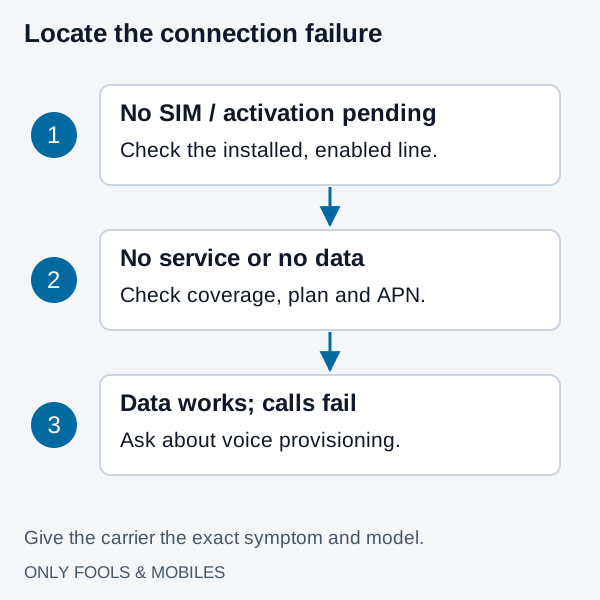
Separate a missing SIM, missing coverage, failed data and failed calls before changing settings. Record the phone model, OS version, plan, location and symptom. A factory reset is a poor first step because it can erase useful evidence and personal data.
Use the focused guides for Android background drain, eSIM and travel setup, and 5G UW versus UC.
Work through the connection in order
| Symptom | First check | Next action |
|---|---|---|
| No SIM or activation pending | Is the line installed and enabled? | Follow the carrier’s activation instructions on a reliable connection; do not delete the profile casually. |
| No service or SOS | Outage, coverage and account status | Try another known-covered location and a restart; ask the carrier to check provisioning. |
| Bars but no mobile data | Selected data line and allowance | Check the carrier’s APN instructions and plan status. |
| Data works but calls fail | Voice eligibility and provisioning | Ask the carrier to check calling support for the exact model. |
An EID identifies the eSIM hardware; an ICCID identifies a SIM or profile. Check activation status with the carrier.
On iPhone, Apple’s 5G troubleshooting starts with carrier/plan support and coverage, then Airplane Mode and carrier assistance if service still fails. Use only your carrier’s APN values. Record the current settings before making changes, and avoid modifying hidden modem options.
Compare plans beyond the host network
Two plans using the same towers can differ in data allowance, hotspot support, roaming, video limits and congestion management. Read each plan’s published network-management and international terms. Check the provider’s congestion policy for your exact plan.
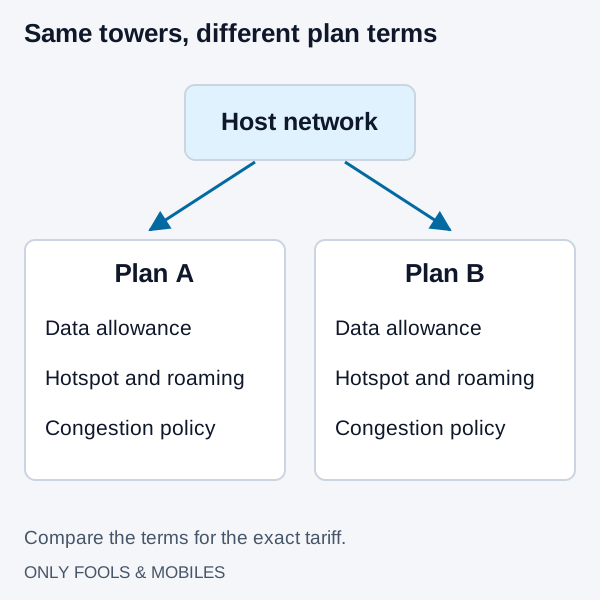
For a travel SIM, compare destinations, validity start time, included data, top-ups, hotspot rules and whether voice/SMS are included. Confirm the phone is unlocked and compatible. On Dual SIM, choose the data line deliberately and review home-line roaming charges; turning off data roaming does not disable chargeable voice use.
Separate battery wear from current consumption
Check battery usage for the affected period. Screen brightness, navigation, camera use, cellular conditions and apps can all contribute. Compare similar use on Wi-Fi and cellular rather than treating a particular signal-strength threshold as proof of the fault. Google’s battery-drain guidance recommends app and system checks before more disruptive steps.
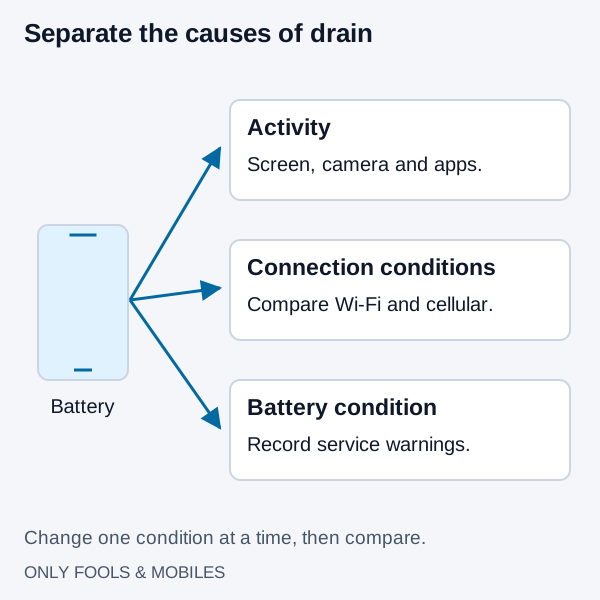
On iPhone, try 5G Auto if 5G On is selected; Apple says the latter may reduce battery life. On Android, use the available manufacturer’s battery and connectivity controls. If there is a battery-service warning or unexpected shutdown, consult the refurbished battery checklist. A percentage from a usage chart cannot identify a specific wakelock on its own.
Recover storage without deleting needed data
Google’s Pixel storage guide separates storage from working memory. Open Settings → Storage to identify the largest categories. Remove unneeded downloads from the app that created them, uninstall unused apps and verify a backup before removing local photos or videos.
For an individual app, Settings → Apps → the app → Storage & cache offers different actions: Clear cache removes temporary data; Clear storage removes app data and can require signing in or setting up again. Prefer the app’s own download cleanup when possible. Review files before deleting them and avoid indiscriminate cleaner tools.
Escalate with reproducible details
If the problem persists, provide the carrier or manufacturer with the model, software version, error text, location/time and whether calls, texts and data fail together. Keep IMEI, account credentials, QR codes and verification codes private. A small, repeatable test is more useful than changing several settings before asking for support.
Supporting technical guides in SIM Plans & Mobile Troubleshooting
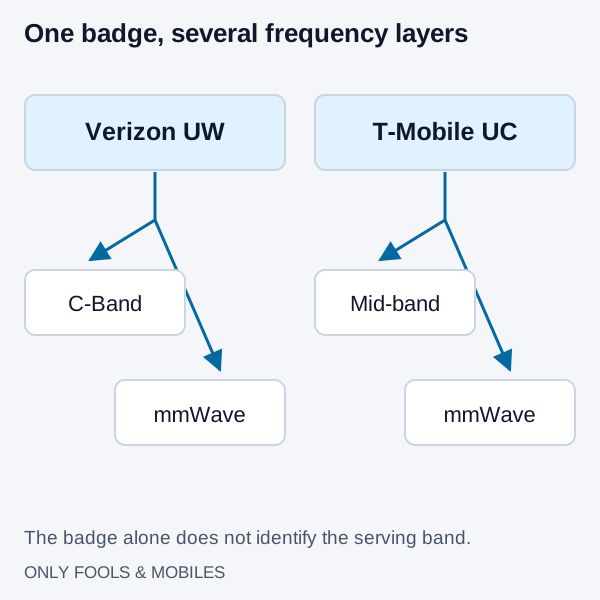
5G UW vs. 5G UC: mmWave, C-Band Frequency, and Battery Drain Explained
Understand Verizon 5G UW and T-Mobile 5G UC, mid-band versus mmWave coverage, and how iPhone 5G Auto changes network selection.
Read technical guide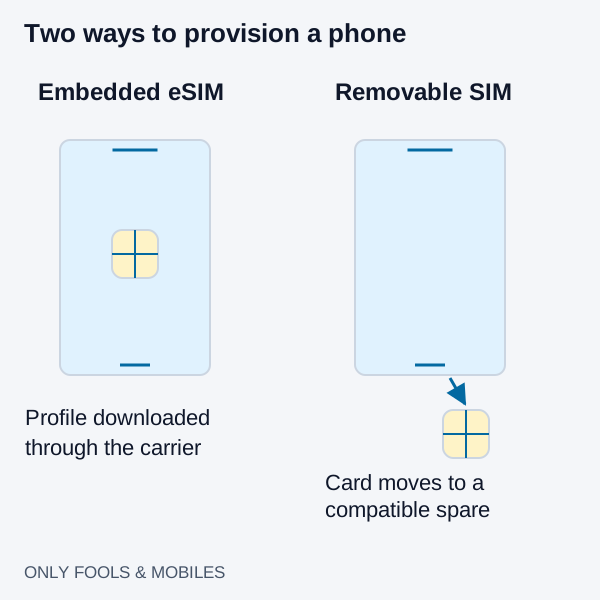
eSIM vs. Physical SIM Card: Carrier Switching, Roaming, and Theft Security
Compare eSIM and physical SIM for travel, broken-phone recovery and theft protection, with carrier-specific activation and roaming checks.
Read technical guide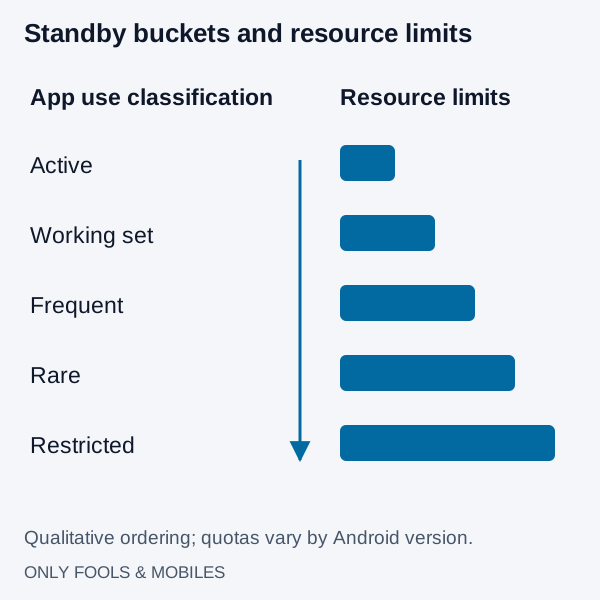
How to Stop Apps Running in Background on Android (Battery Save Guide)
Find Android background battery drain, use Pixel or Galaxy controls, preserve messaging alerts and distinguish battery restrictions from background data.
Read technical guide