How to Stop Apps Running in Background on Android (Battery Save Guide)
Find Android background battery drain, use Pixel or Galaxy controls, preserve messaging alerts and distinguish battery restrictions from background data.
Start with Battery usage, identify one app whose activity does not fit your use, and change its background settings. Android already manages idle apps; repeatedly closing everything is not a diagnosis. Preserve alerts you rely on and compare battery use after each change.
See SIM and mobile troubleshooting if signal loss or heat accompanies the drain.
Find the app before restricting it
In Settings → Battery → Battery usage, inspect the apps used during the affected period. Google’s battery-drain guidance recommends checking app usage, updates and battery settings. A high share of consumption can be expected for navigation, calls or video; it does not by itself prove a rogue wakelock.
Record the phone model, Android version, app version and whether the problem happens on Wi-Fi or mobile data. Update the app and system, restart, and compare a similar period. Change one setting at a time so the result is interpretable.
Use the controls your device actually offers
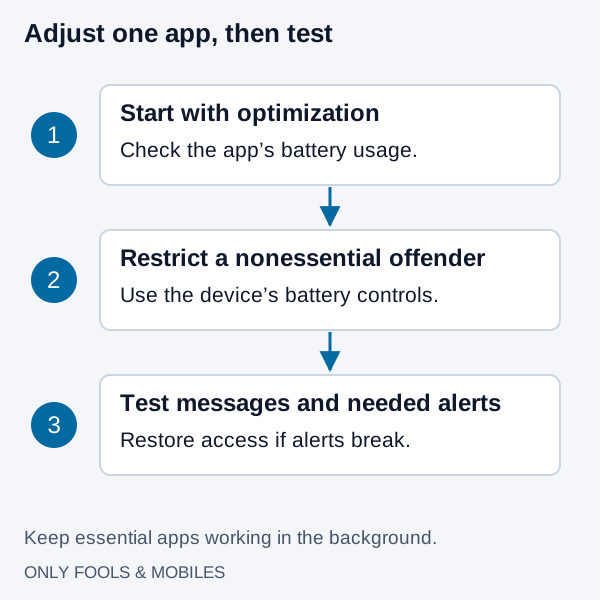
On Pixel, open Settings → Apps → See all apps → the app → App battery usage. Google’s optimization instructions use Allow background usage and Optimized. Some versions expose Restricted, Optimized and Unrestricted; labels vary by Android build and manufacturer. Keep Optimized as the starting point. For a nonessential app that demonstrably drains battery, use the offered restriction or turn background use off, then test its behavior.
On supported Galaxy phones, Samsung documents Battery → Background usage limits with Sleeping, Deep sleeping and Never sleeping lists. Search Settings if your version groups these under Device care. Deep sleeping apps work when opened rather than in the background. Remove an app from that list if you need timely background behavior.
For messaging, first test with default optimization. If messages arrive late after a restriction, restore background access and, on Galaxy, consider Never sleeping for that app. Do not impose blanket battery changes on medical monitoring or safety-critical apps; follow their device-specific setup instructions.
Background data is a separate control
Restricting an app’s background mobile data can reduce cellular transfers, but it does not directly disable all CPU wakelocks or Wi-Fi traffic. On versions that offer it, look in the app’s mobile-data settings for Background data, or use Data Saver and its per-app exceptions. Keep an exception for messaging you require and verify delivery with the screen off. Controls and effects differ across devices; do not assume the battery switch and data switch are equivalent.
What standby buckets and Doze do
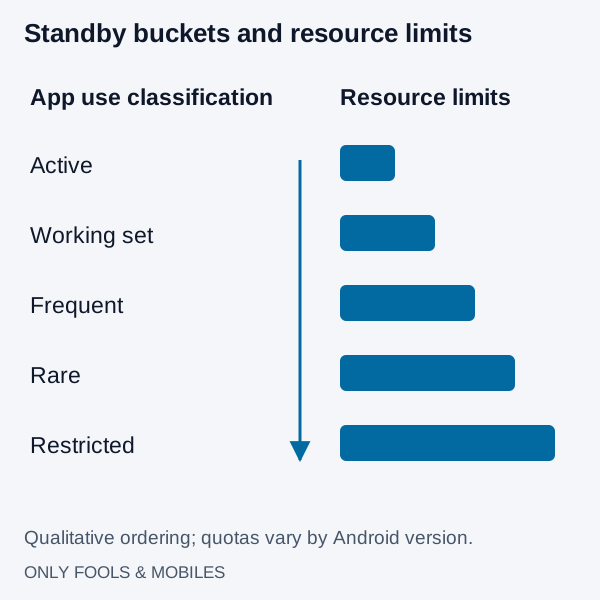
Android’s power-management documentation describes Active, Working set, Frequent, Rare and Restricted buckets. These system classifications affect resource quotas; the user-facing battery restriction is a related control, not simply a universal switch assigning a bucket.
Android 16 changed job execution quotas, including cases involving foreground services. A single “jobs run immediately” table cannot describe Android 14, 15 and 16 accurately. Charging, app state and exemptions also matter.
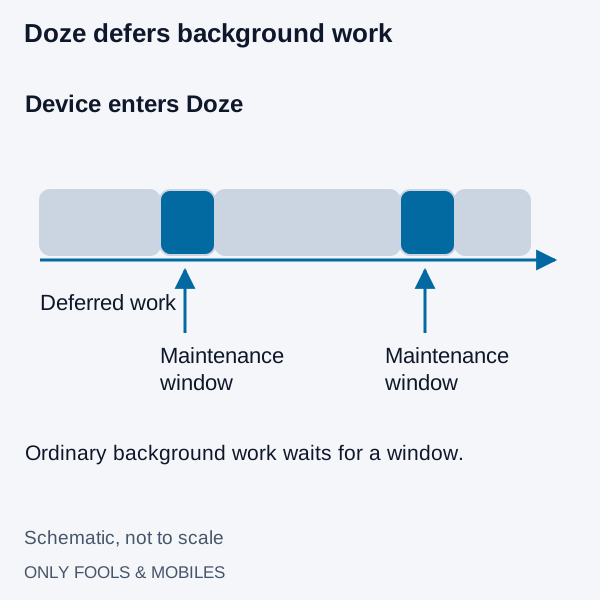
Doze defers ordinary background work during idle periods and permits maintenance windows. It ignores ordinary app wakelocks while active, with documented exceptions. A foreground service or a process in memory is not automatically proof that the CPU stayed awake all night.
Verify the result and know when to escalate
Compare similar use, signal conditions and elapsed time before and after the change. Check a message, alarm or wearable sync you depend on. If alerts break, undo the restriction. Force stop is useful for a malfunctioning app, but is not a daily battery-maintenance routine.
If drain persists with low app activity, investigate 5G settings and coverage and battery health. Save the usage screenshots and version details for the app developer or device support. No fixed overnight percentage diagnoses every phone.
Related technical guides
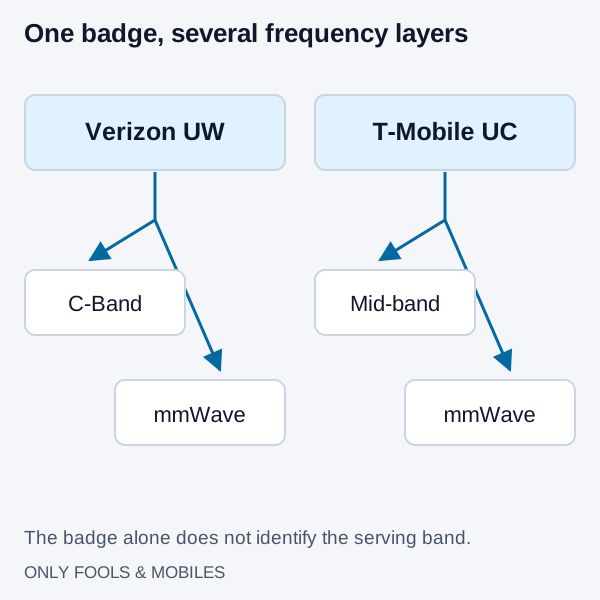
5G UW vs. 5G UC: mmWave, C-Band Frequency, and Battery Drain Explained
Understand Verizon 5G UW and T-Mobile 5G UC, mid-band versus mmWave coverage, and how iPhone 5G Auto changes network selection.
Read technical guide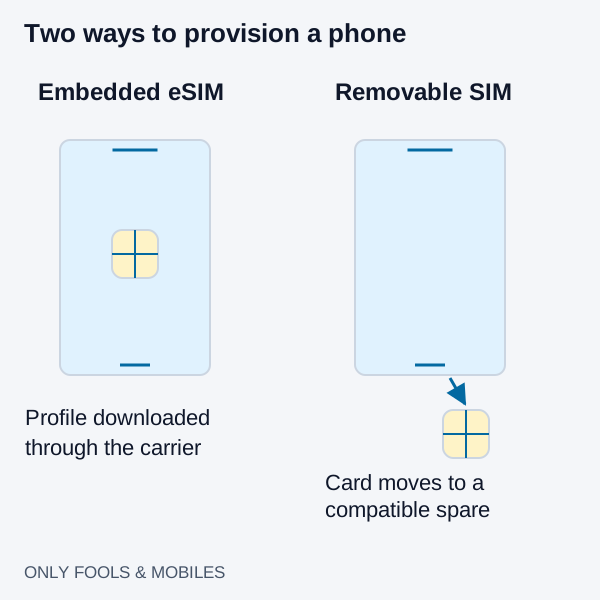
eSIM vs. Physical SIM Card: Carrier Switching, Roaming, and Theft Security
Compare eSIM and physical SIM for travel, broken-phone recovery and theft protection, with carrier-specific activation and roaming checks.
Read technical guide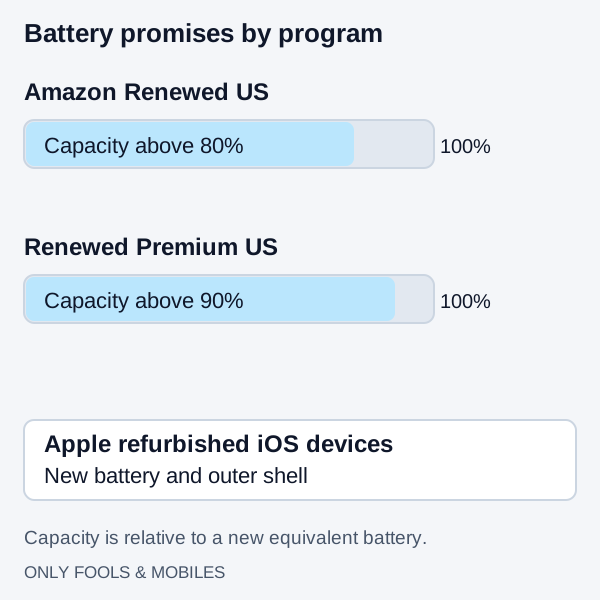
Amazon Renewed vs. Refurbished: Grading, Battery Health, and Warranty Compared
Compare Apple refurbished iOS devices with Amazon Renewed US battery, parts and cosmetic rules, then use a first-30-minute delivery checklist.
Read technical guide